Descript - Make Your Video Editing Process 80% Faster!
Descript: More Than Just a Video Editor
Descript isn’t just a "normal" video editor tool—it's a powerful AI suite that makes the editing process so easy and quick that I call it AI magic. It streamlines your videos by automatically removing content that would otherwise require tedious editing, allowing you to focus on the creative aspects and content planning.
Many features are activated with just one click and require no extra work on your part, but their effects are immediate and so efficient! In this test, I’ll show you which AI features enhance your clip significantly and how you can use Descript as your AI co-editor to shorten your workflow.
I mainly focused on the core video editing features. Although I think products like AI speakers, Brand Studio, and generative video are helpful, what makes Descript truly unique is how it improves your existing material.
For my test, I first uploaded a video where I reviewed Gamma vs. Canva, with my talking head leading through the screen recording for about 4 minutes (original length) and videos like ads in raw cuts without b-roll.
The Descript Features That Make a Difference
I tested all the AI video editing features that make Descript stand out:
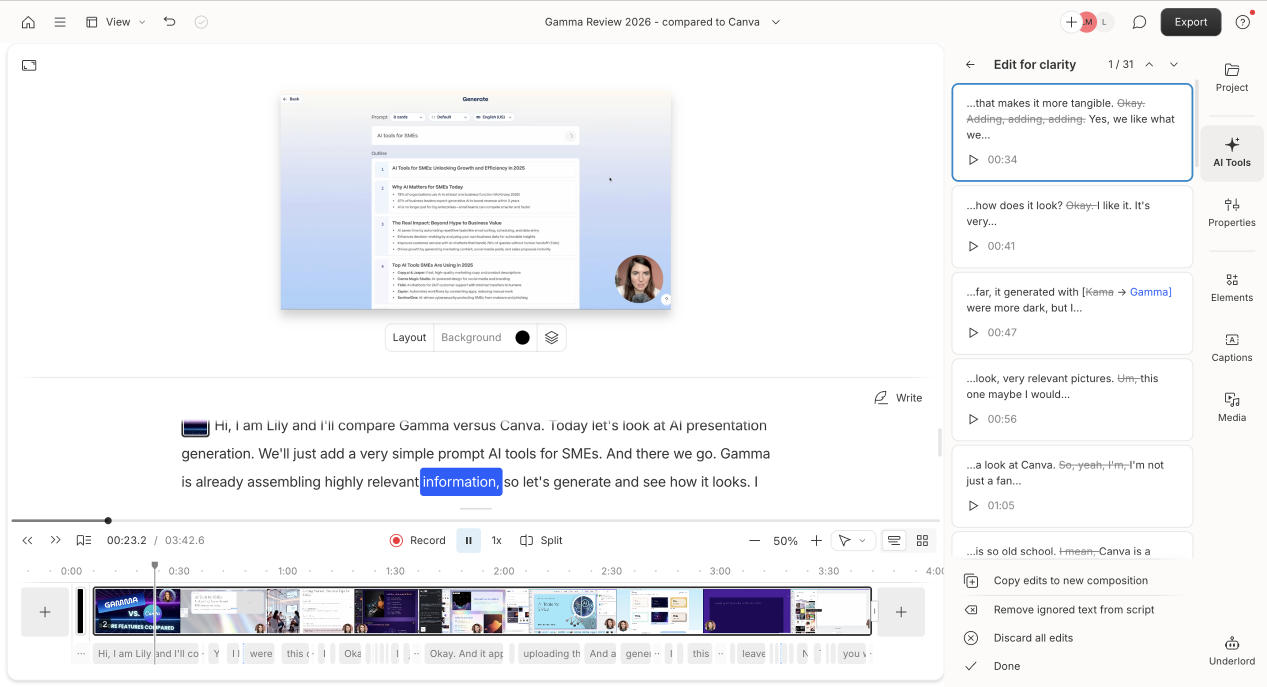
Edit for Clarity
Studio Sound
Remove Filler Words
Remove Retakes
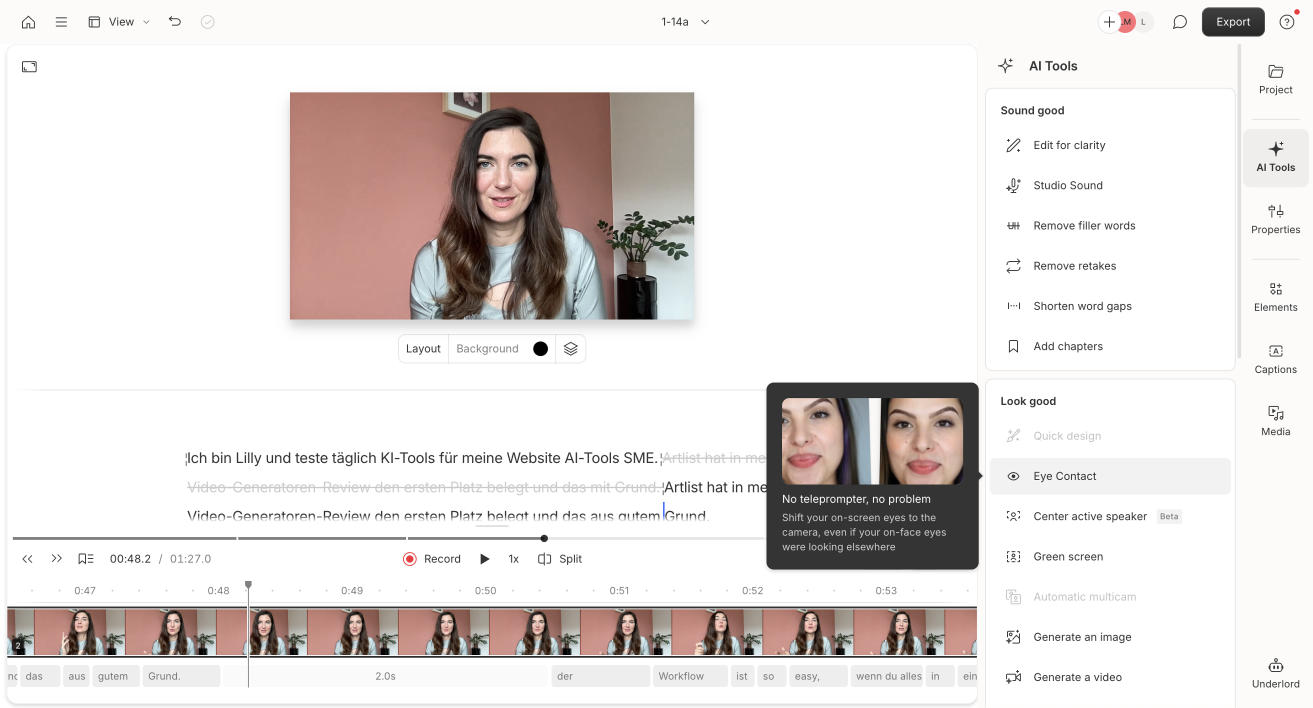
Eye Contact
Let’s get started and see what each function does and how well it works in this tutorial.
When you first upload a video, Descript's AI will prepare your file by automatically leveling the audio, creating a transcript, and detecting its speakers. The transcript allows you to edit the video as if you would edit a text file. All changes you or the AI makes, will be documented on it as well, so you know at all times what's left in the final cut.
Edit for Clarity - Slice Up Your Timeline
First, when using this feature, you can set the Edit for Clarity intensity. I set mine to medium. Descript edits out all filler words and unnecessary sentences that don’t add to the story. A few “ahms” and “likes” and even two whole sentences later, my video became much clearer.
But at first it went too far. For example, as a joke, I mentioned in one sped-up screen recording that I should add drum and bass music underneath to fit the stressful feel, but Edit for Clarity cut it out, which makes sense for clarity. But I'd leave it in for personality and relatability.
So I went back, changed the intensity (you can also manually select what to keep or remove in the transcription), and then I liked it much better: still sounds like me but more professional without the verbal clutter. This feature is incredible and very useful. What surprised me the most was how smooth the edits are, barely noticeable to the audience or even me.
Remove Filler Words
This feature works similarly to Edit for Clarity. It removed 26 filler words in my almost 4-minute video. Unlike Edit for Clarity, which also removes some comments and jokes, Remove Filler Words just takes out unnecessary things like “ums,” “you know”, “okay,” and such.
Studio Sound Feature
Studio Sound didn’t make a huge difference for this video because my audio quality was already good with a microphone. Therefore, I uploaded another clip where I interviewed the founder of Gamma, Grant Lee, with a suboptimal audio. By the way, another thing I appreciate of Descript is that the software detects the different speakers right away, and marks them in your transcription.
The studio sound is automatically set to 100%, which in my case made it sound artificial. Changing it to 30% upgraded it to podcast quality, smooth and clear. All the background noise disappeared, which makes it much easier to focus on our conversation, without sounding metallic, which other tools tend to do.
Remove Retakes: A Huge Time Saver
Remove Retakes is super helpful. If there is one feature that saves half your work and lots of time, it's this! To test it, I uploaded a raw recording of me talking with no edits. Descript advertises this feature with “Cut all but your best takes.” So, I checked if its choice matched mine.
It took the best versions in almost all of the clips, which I really don't understand how it does it. I said it, it's AI magic.
In a few instances it left bits where I paused, preparing for the next take, which I would cut for sure. I assume that detecting these parts is hard for Descript because the transcription doesn't show them. Still, it’s a huge help and reduces editing work so immensly because you don't have to look through all the footage.
Shorten Word Gaps with Descript
This feature is especially useful for TikTok or YouTube creators or any platform where attention spans are low, and viewers don’t like dragged out sentences. You can specify how long or short the gaps between words should be, and Descript will show you all the places it applies. You can then either remove them all at once or jump to each section and decide individually.
This was the least helpful feature for me, as it mainly detected parts between takes, but it would be useful for interviews where the speaker pauses to think a lot or for webinar replay recordings.
Eye Contact: A Cool Descript Cheat Code
This feature is a little strange but amazing. It perfectly fixes your eyes to look into the camera throughout the whole video. But it doesn't do it in a creepy stalker way, it feels very natural and I had to look at both videos next to each other to see the difference. The only time I I can see that something is off is when I'm technically looking up and thinking, but my eyes look straight into the camera. I think I'm the only one who notices this though.
Another incredibly powerful feature, as my setup for recording with a teleprompter is much more complicated if I require a second screen further away. With the eye correction, I can literally just read off my computer screen, from where I also record and correct my eyes later.
My Unfiltered Conclusion on Descript
I really tried to be picky and share everything about Descript. Honestly, it was hard to find something I didn’t like. This video and audio editing app is so useful, especially for content creators who are often in front of the camera.
The editing process with Descript is very simple; you can streamline workflows easily, and it saves loads of time after filming. Without needing to sort bad takes or fix every detail, you can focus on making much more content. Features like studio sound upgrade your output if you can't film in the best settings or you're on the go.
I love the dashboard and find it very intuitive, the editing software is high-quality and many features are nuanced: just toggle or prompt the intensity you want Descript to apply and it will adjust the content output.
The pricing is very reasonable: the Hobbyist plan costs $16 and includes 10 transcription hours, while the Creator plan is $24 and offers 30 transcription hours. Given how valuable your time is, $16 or $24 is a true bargain compared to the cost of spending those hours editing yourself or hiring help.
Descript FAQs
Can I Edit Podcasts with Descript?
Yes, Descript is great for editing podcasts. It lets you transcribe your audio, remove filler words, and easily edit. You can export audio files in many formats, making the process smooth for podcasters.
Can I Use Descript for Free?
Yes. Descript’s free plan offers about 3 hours of transcription per month, basic editing tools including filler words removal and studio sound, unlimited projects, and 720p video export. This is enough to get a glimpse into Descript.
How much does Descript cost?
I really think the pricing for a subscription is fair because it's quite tiered. Here are the prices for Descript billed annually:
Free Plan: $0 per month, includes 1 hour of transcription per month, basic editing tools with limitations, and 720p video exports. This is suitable for trying out Descript and doing small projects.
Hobbyist Plan: $16, offers 10 transcription hours, watermark-free 1080p video export, and limited use of AI features. This plan is good for creators ready to produce finished content.
Creator Plan: $24, includes 30 transcription hours, 4K video export, unlimited AI tools, up to 3 collaboration seats, and 1 TB cloud storage. It targets dedicated creators and small teams producing content regularly.
Business Plan: $50, offers 40 transcription hours, all Creator features plus team collaboration tools like shared Brand Studio templates, priority support, up to 5 seats, and 2 TB cloud storage. This suits businesses with content as a core function.
Enterprise Plan: Custom pricing for large organizations with advanced security, dedicated support, unlimited transcription and storage, custom onboarding, and more. Best for large teams with complex workflow needs.
Additional details:
Paid plans remove watermarks and increase export resolutions.
AI features like filler word removal, Studio Sound, and AI speech have expanded usage limits with higher tiers.
Users can purchase additional transcription hours if needed.
Annual billing offers significant savings compared to monthly billing.
Does Descript Have a Teleprompter?
Yes. Descript has a built-in teleprompter feature. You can paste your script and record video while reading it. This helps keep your eye contact natural in your videos, but you can also just use the eye correction feature (which in my opinion is easier and works so good!).
Does Descript Have an API?
As of now, Descript doesn’t offer a public API. Some third-party integrations exist but no official API is available yet.
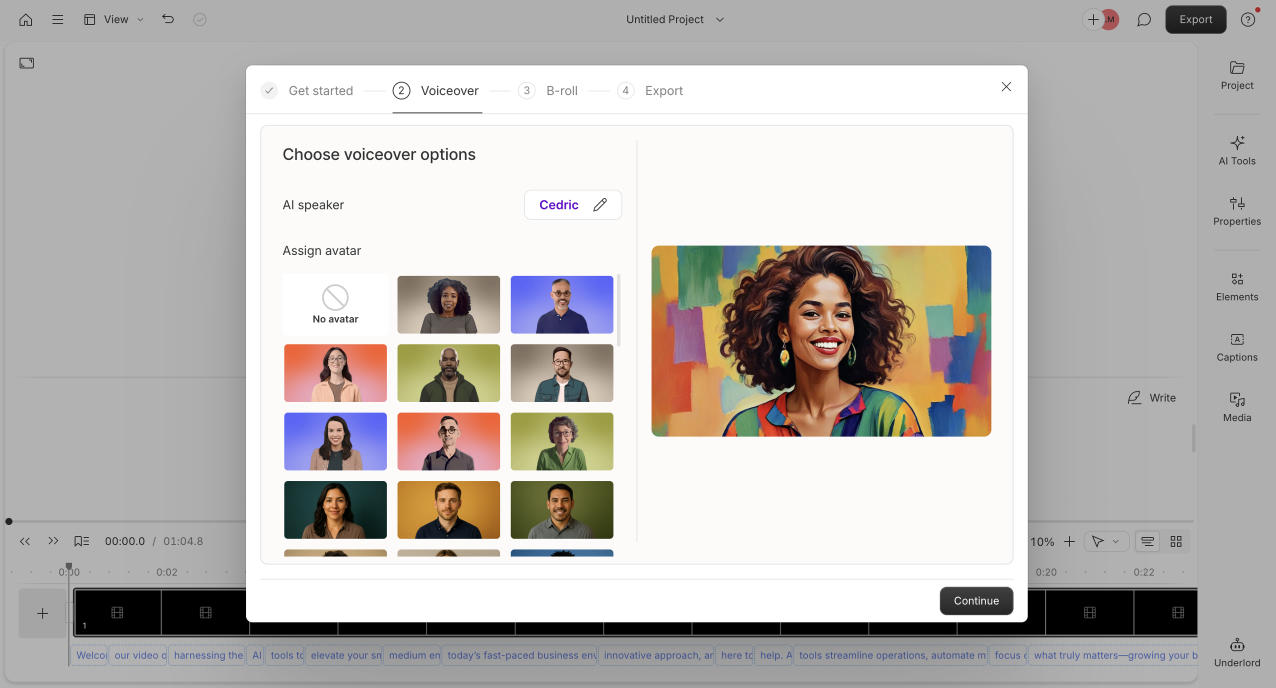
Can Descript Generate AI Voices?
Yes. Descript can generate AI voices in over 20 voices across 14+ languages, including English, Spanish, German, French, Italian, Portuguese, Dutch, Hindi, Chinese, Japanese, Korean, and more.