AI Video Workflow: I Killed It With Artlist Flows!
Creating multiple ad variations in a breeze


If you're like me, seeing screenshots of AI video workflows full of Make.com or Zapier nodes can seriously stress you out. I'm not much of a builder. I'd much rather pay a few bucks for a ready-made tool that's maintained and gets me from A to B quickly, where basically nothing breaks because the setup is solid (so not Make.com or Zapier, which I find annoyingly brittle).
Thank god we have tools like that now. Today I'm testing one and setting up my first AI video workflow. I'll use Artlist Flows, which just launched.
The advantage is that each node stays separate. If the voiceover sounds off, you fix that one node and rerun just that step; the image and video nodes don't need to be touched. And because the whole chain is saved as a canvas, you can go back later, swap out the starting prompt or image, and rerun the entire thing with a single click instead of redoing each step by hand.
Build the connections once, then reuse them as many times as you want.
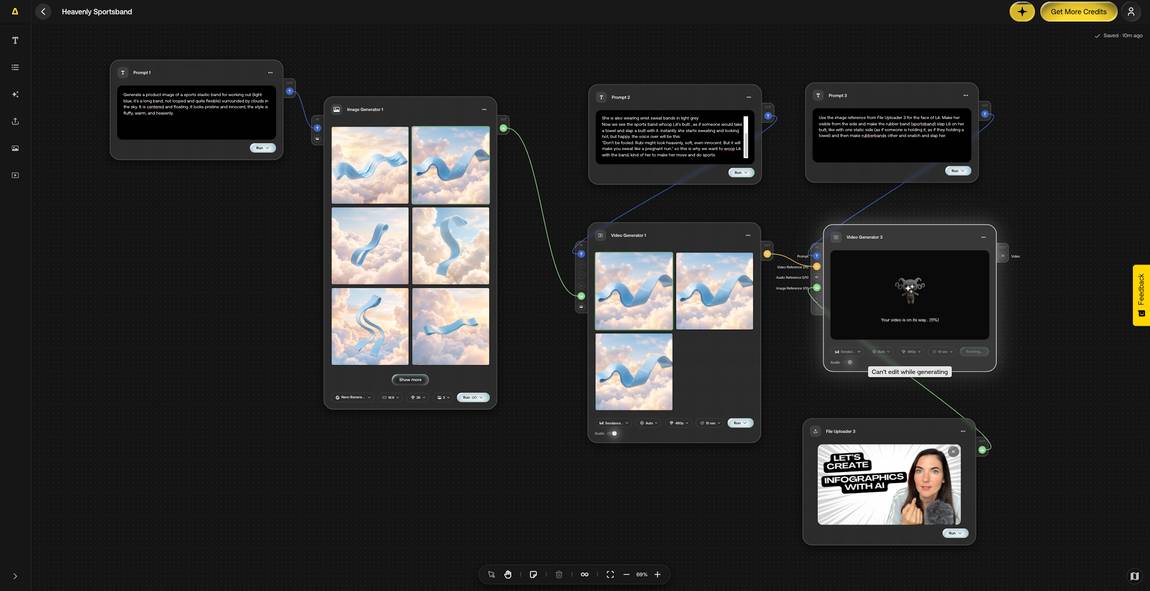


- Generate a product image
- Animate it into a short video clip
- Add an AI voiceover script over it
- Generate 2 variations of the voiceover
- Swap in a second product and rerun the whole thing
Let's set up the AI video workflow first, then run it a few times with some changes.
I start with an empty canvas. On the left is a menu where I can choose prompt, list, prompt assistant, file uploader, image generator, or video generator. I start with a prompt, kept simple: "Generate a product image of a sports elastic band for working out (light blue, it's a long band, not looped, and quite flexible), surrounded by clouds in the sky. It is centered and floating. It looks pristine and innocent, the style is fluffy, warm, and heavenly."
Next, I turn that image into a video. The prompt zooms into the band (I named her Rubi, from rubber), makes her look innocent as the camera zooms in, then zooms back out as Rubi slaps my butt. Literally and figuratively, because in the next step the voiceover says:
"Don't be fooled. Rubi might look heavenly, soft, even innocent. But it will make you sweat like a pregnant nun."
Sorry, I can't help it, I have to make it a bit funny.
Now for the fine-tuning part of this AI video workflow. I run it step by step instead of all at once, because if I'm not happy with one step, I can just adjust that single node and regenerate from there instead of starting over. I went back and forth fine-tuning a few of the nodes until the tone matched what I had in mind.
Once I'm happy with everything, I can have the pipeline create a few versions of the final product video, download them, and generate more with different variations. I could change the product's color or swap the background, and I wouldn't have to start from scratch each time. This is where an AI video workflow actually earns its name, it's genuinely exciting how easy this makes my life.
But let me make one more change: a less edgy version the brand team would approve of too. I swap the voiceover to "Don't be fooled. Rubi might look heavenly, soft, even innocent. But it will make you sweat like no other sports band." I make that change right in the prompt node, rerun only the voice generation step, and save a ton of credits since I can just mute the original video and lay the new voiceover on top.

- To build a similar AI video workflow for a different topic, just duplicate the whole canvas and change the prompts, models, or whatever needs to be different.
- Name your nodes as you go. Once a canvas has more than a handful of steps, "video generator 3" tells you nothing when you come back to duplicate or edit the flow later.
Every model on the platform is available inside Flows too, so you're not limited creatively by having to pick one AI model for the whole project. You can mix and match per step depending on what each one is actually good at, generate a batch of variations, and land on the version that fits before you commit.
On top of everything it will simply save you credits if you set everything up wisely, just like in my example where I created a new voice over instead of a full video. Video credits stack up fast, especially if you like to play around with the newest models like I do.
Do I need any technical skills to build one?
This is my favorite part: No. You don't need to code or understand APIs. If you can drag a node onto a canvas and write a prompt, you can build one.
How much does it cost to run an AI video workflow?
That depends on the plan and the models you pick, since some models cost more credits than others per generation. If you're on an Unlimited plan, the models included there won't eat into your credits at all. And the flow setup itself is completely free, you don't pay for nodes you don't ever run.
Can I reuse the same AI video workflow for a different product?
Yes, that's the whole point. Duplicate the canvas, swap the prompts and reference images for the new product, and rerun it.
What AI models can I use in an AI video workflow?
Whatever's available on the platform. In this case that's over 64 image and video generation models, so you're not locked into one look or one AI's limitations.