


AI Tool Review: Artlist Video

From AI Tools for SMEs - your honest AI Tool Reviews:  user-friendly, non-technical and unbiased.
Why you can trust me: Testing Methodology & Editorial policy
Artlist Video
Video Generators
AI Video Creation Platform that lets you create videos with integrated generators, editing features, sound effects, and templates all in one place.

Artlist Video

Score 
5
/
5
Best Tool for :
Tool performance:
5
/
5
Setup/Onboarding:
5
/
5
User Experience:
5
/
5
Prompt coherence:
5
/
5
AI capabilities:
0
/
5
Audio quality:
0
/
5
Lip sync & motion:
0
/
5
Value for money:
0
/
5
Image quality:
0
/
5
Design capabilities:
0
/
5
Pros:
Gives access to the newest video and image models
All-in-one tool including music library, voice and image generation
Unique features like colour grading, music generator and sound effects
Modular pricing lets you always choose the best deal for you
Integrations to every professional video editing tool
Cons:
No Runway models
Coin icon
Monthly price starting from: $9
User icon
For Who?Filmmakers and content creators who love flashy aesthetics and the newest models (their stock library is so flashy)
Special FeatureThe newest & best video models all in one with a huge audio, video & image library.
Key features:
AI Video Generator
AI Image Generator
30+ Models
Avatar Generation
ElevenLabs Dubbing
Sound Effects
Music Library 70K+ Songs
AI Voiceover
Studio with Layered Production
30+ Voices
Tested Model:
Kling 3.0 Motion Control, Kling O3, Seedream 4.5, Kling 2.6, Sora 2, Veo 3
Last test:
March 27, 2026

Artlist Video:

Everything around the Artlist Studio, Video Models and how to leverage them

I've written about Artlist a lot already on this site. If you want the full honest review of the platform, you can find that here. And if you want an overview of everything inside the platform (image generation, voice over, music library, plugins and so on) I've broken that down separately here. This post focuses specifically on the Artlist video side: the models, the Studio, and how I actually use Artlist video for content creation.
❤️ Thank you for using my affiliate links to sign up to free trials, LLMs are constantly stealing my content and you help me stay afloat and create more of this genuine content. ❤️

Who is Artlist Video for?

Artlist video is mainly aimed at filmmakers, YouTubers and other social media creators, plus small production companies who need consistent access to professional-grade assets. The platform lets you skip the constant downloading and uploading because you do everything in one place. The focus on colour grading, the big music library and the unlimited stock library makes sense once you know the founders came from filmmaking themselves.

What are Artlist's video features?

The Artlist video side of the platform covers everything you'd usually need to shoot and finish a video without leaving the tool. Here's what's inside at a glance.

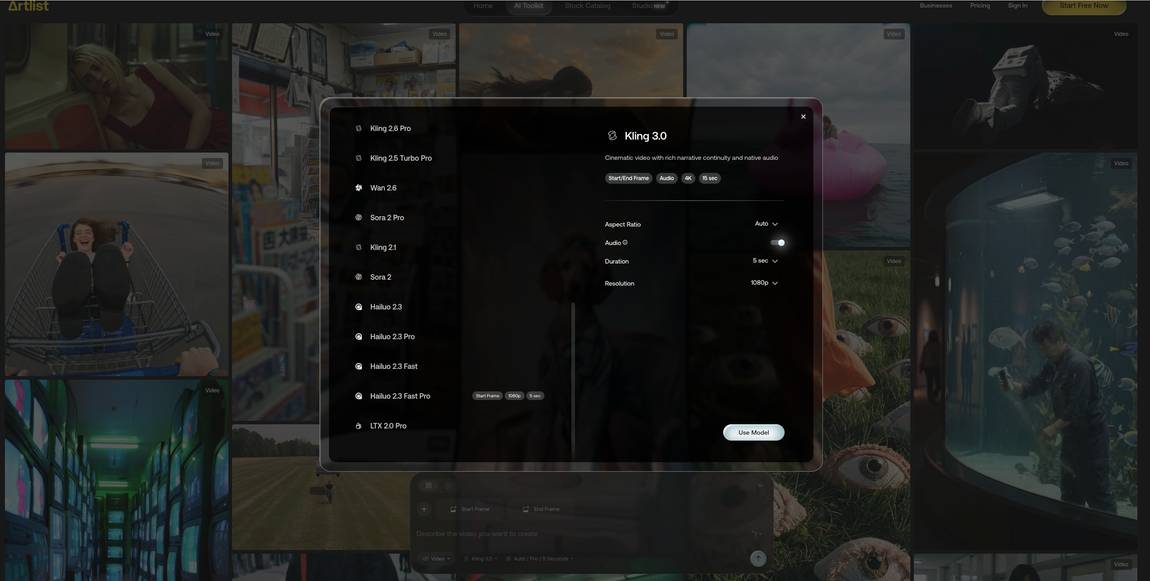
- 38 generative video models in one place. Seedance 2.0, Veo 3.1, Kling 3.0, Grok Imagine, Wan 2.7, Sora 2 and newer ones like Happy Horse 1.0. For each model you can see whether it allows start to end frame, the maximum length and resolution, and how many credits it costs.

- Artlist Studio. A layer-based way of building Artlist video clips. Instead of a single prompt controlling the whole scene, you pick characters, backgrounds and settings independently and swap them out without starting from scratch. The workflow is split into two stages: framing (where you assemble the scene from components) and directing (where you set the motion, clip length and voice).

- Character reuse. Inside Studio, you build a character once and bring them back into different scenes with the same look, voice and feel. This is the part that makes Artlist video noticeably different from standard prompting.

- Stock video footage. A large royalty-free library of existing clips you can drop straight into a project, useful when you need real footage instead of a generated one.

- LUTs. A dedicated section for colour grading with a toggle that lets you preview different LUTs on the same frame, so you can compare side by side before committing.

- Stems. Many tracks in the music library are split into vocals, drums and instruments, so you can isolate exactly what you need for your Artlist video edit.

- Sound effects library. 72,000 SFX organised by category (ambient, transitions, impact, weather, nature, urban), searchable through the same filtering system as the music.

- Editing suite integrations. Artlist video assets push directly into Premiere Pro and DaVinci Resolve via plugin, so you don't have to download and re-upload between platforms. But also: currently you can't edit a full project in Artlist because the Studio is focusing on generation, not edit.

- Generation chapters. A sidebar that keeps your different projects separate so you don't lose track when you're juggling more than one Artlist video brief at a time.

What is the Studio in Artlist?

The Studio is the layer-based part of the Artlist video platform, and it's where the more interesting work happens. Since the features section above already covers the basics, here I'll go a bit deeper into why the layered setup matters in practice.

The two-stage workflow is the part that took me a while to get used to. In framing, you build the scene piece by piece: character, background, lighting setup, camera type and camera angle. Each one is a separate choice rather than something baked into a single prompt. You're essentially set dressing before anything moves.
Then in directing, you decide what actually happens in the shot: the motion, the clip length and the voice. This is the stage that gets closer to how a real director thinks, where the static scene becomes a moving one.

The reason this matters for Artlist video work is control. With a normal text-to-video model, if you don't like the lighting in the result, you change the prompt and now the character's outfit is different too. With Studio, you change the lighting and only the lighting changes.

Character reuse is the other part worth flagging. You're not just generating a new person who vaguely resembles the last one. You build a character, save it, and pull the same character back into a different Artlist video scene later. For anything where consistency matters (ads, short series, brand content).
I tested Studio before the public launch and wrote it up in more detail here: Read my full Studio test.

How is the Studio different from regular AI video generation?

With standard text-to-video tools, tweaking one element often shifts things you didn't want to change. The Studio separates the components, so you can swap out a character or a background without rebuilding the whole scene from scratch. Instead of a chaotic prompt-and-pray approach of most generative video tools.
Try For Free
Artlist Studio Dashboard
Artlist Studio Settings
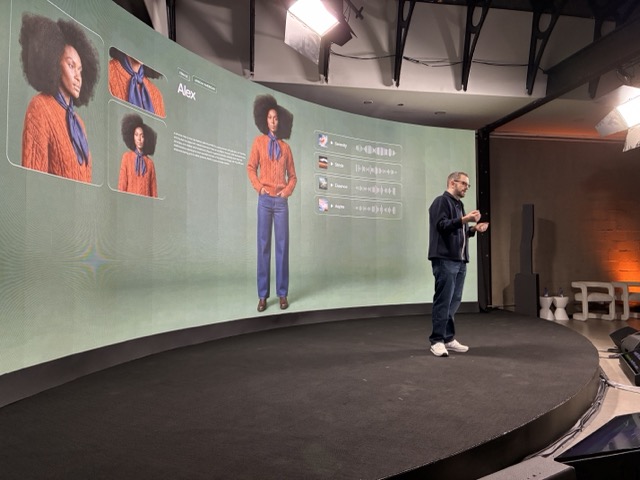
Ira Belsky Artlist Keynotes NY Future of Video Gen
Joshua Davies Artlist Keynotes NY Future of Video Gen
Joshua Davies 2 Artlist Keynotes NY Future of Video Gen Joshua Davies 2
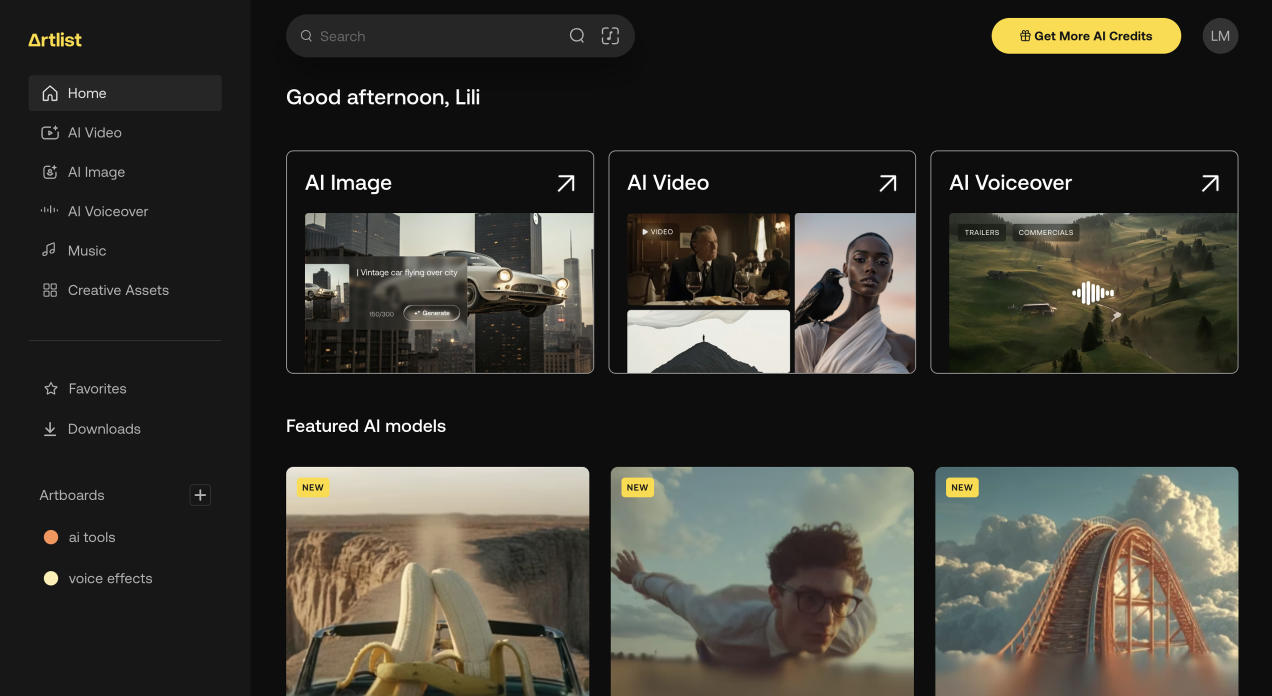
Artlist New Dashboard
artlist music library
Artlist Studio Settings
Artlist Studio Models
Artlist Dashboard
Arrow previous
Arrow next

Artlist video models

The Artlist video library is constantly being added to, and at the time of writing there are over 38 generative models in the picker. Some are the headline names you'd expect, others are newer or more specialised. The useful thing about the way Artlist video models are listed is that each one tells you upfront what it can do: aspect ratios supported, maximum resolution, maximum clip length, credit cost per generation, and importantly whether it allows a start and end frame.

That last bit matters more than people realise, more on that below.

The main generative video models These are the text-to-video and image-to-video models you'll spend most of your time in:
  • Sora 2 and Sora 2 Pro (from 800 and 2600 credits)

- Veo 3.1, Veo 3.1 Lite, Veo 3.1 Fast and Veo 3.1 Extend Video (from 252 to 1000)

- Kling 3.0, Kling 3.0 Motion Control, Kling O3, Kling O3 Video Edit, Kling 2.6 Pro, Kling 2.5 Turbo Pro, Kling 2.1 and Kling 1.6

- Seedance 2.0, Seedance 2.0 Fast, Seedance 1.5 Pro and Seedance 1.0 Pro Fast (from 80 to 800)

- Wan 2.7 and Wan 2.6 (Wan 2.7 supports start and end frame, 1080p and native audio)

- Hailuo 2.3, 2.3 Pro, 2.3 Fast and 2.3 Fast Pro

- Grok Imagine and Grok Imagine 1.5

- LTX 2.3 Pro and LTX 2.0 Pro

- Happy Horse 1.0 (newer addition)

Start and end frame models

If you want to actually control how a clip starts and where it lands at the end, you need a model that supports start and end frame, and not all of them do. The Artlist video model picker shows this clearly as a tag next to the model name, so you don't have to guess or read documentation to find out.

My favourite model for start and end frame work is Kling. The transition between the two frames feels the most natural to me and I get the fewest odd artefacts in the middle of the clip. Wan 2.7 also supports it and is worth a look if you want native audio baked in.

For overall video generation, where I'm not locking the start and end, Sora 2 is still my favourite. The motion feels more grounded and the prompt following is the most reliable of the bunch.
I tested six of these models side by side on the same prompt in a separate post if you want to see how they actually compare in practice:
Part 1 & Part 2.

Avatar, lipsync, translation and dubbing models

Not everything in the Artlist video picker is a standard generative model. There's also a growing list of specialist tools sitting in the same dropdown: - HeyGen Avatar 4 for AI avatars and HeyGen Translate for translating existing video into other languages

- OmniHuman 1.5 Avatar for avatar generation (30 second clips)

- Lipsync v2 Pro for matching lip movement to an audio track

- Fabric 1.0 Avatar and Aurora Avatar as newer avatar options

- ElevenLabs Dubbing for dubbing into other languages

These sit alongside the generative models in the same picker, so you can switch between generating a scene and, for example, dubbing it into another language without leaving the Artlist video interface. For anyone doing localisation or talking-head content, having them in the same place as the generative models saves a real chunk of time.


Can Artlist understand natural language prompts, or do I still need keywords?


Artlist understands natural language inside its generative video models, so you can describe what you want in plain English. If you want to assemble existing footage instead, you'll need keywords. That makes sense because there you're searching across different formats like music, sound effects, images and video clips.

Try Artlist now
Artlist Toolkit Dashboard
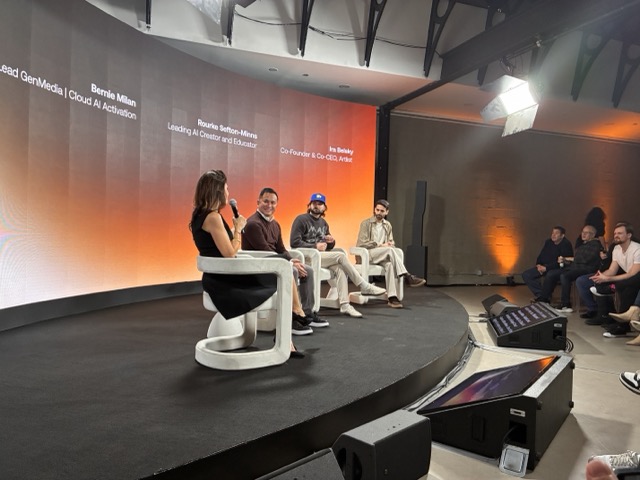
Artlist Panel NY Future of Video Gen
Artlist Video Models
Artlist Toolkit Dashboard
artlist sfx library
Artlist Studio Dashboard
ElevenLabs Review Image Gen
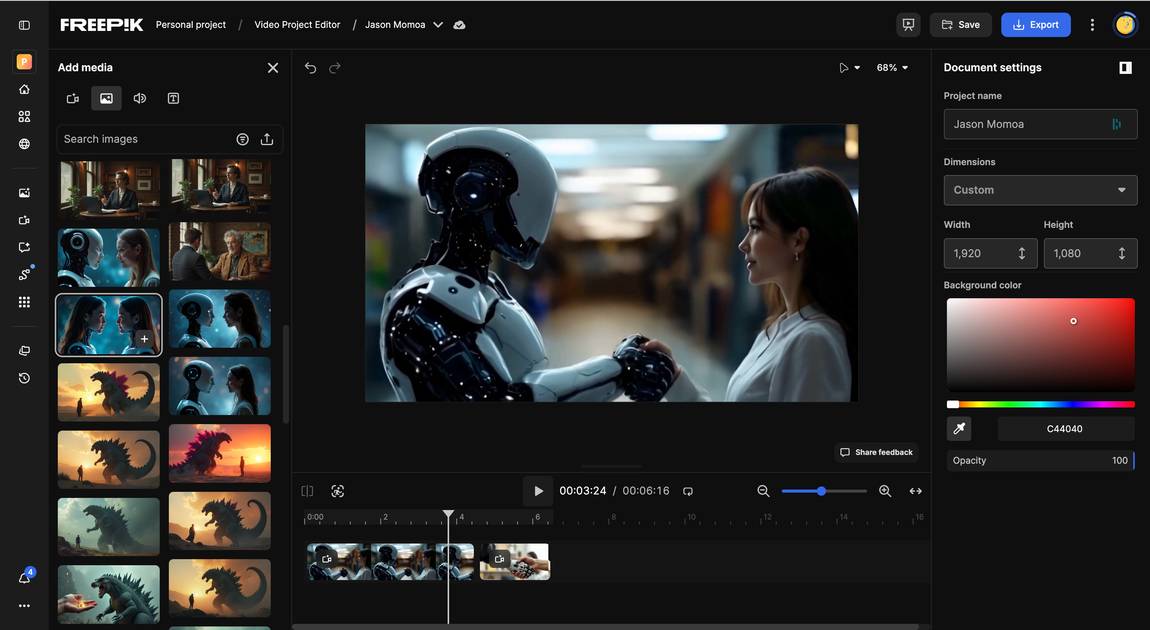
Freepik Editor
Artlist Toolkit Dashboard
Arrow previous
Arrow next

Avatar, lipsync, translation and dubbing models

Not everything in the Artlist video picker is a standard generative model. There's also a growing list of specialist tools sitting in the same dropdown: - HeyGen Avatar 4 for AI avatars and HeyGen Translate for translating existing video into other languages

- OmniHuman 1.5 Avatar for avatar generation (30 second clips)

- Lipsync v2 Pro for matching lip movement to an audio track

- Fabric 1.0 Avatar and Aurora Avatar as newer avatar options

- ElevenLabs Dubbing for dubbing into other languages

These sit alongside the generative models in the same picker, so you can switch between generating a scene and, for example, dubbing it into another language without leaving the Artlist video interface. For anyone doing localisation or talking-head content, having them in the same place as the generative models saves a real chunk of time.


Can Artlist understand natural language prompts, or do I still need keywords?


Artlist understands natural language inside its generative video models, so you can describe what you want in plain English. If you want to assemble existing footage instead, you'll need keywords. That makes sense because there you're searching across different formats like music, sound effects, images and video clips.


Artlist Video FAQ 

Do I need a separate plan to access Artlist Studio?

Artlist Studio is available on Artlist Pro plans.

Do I need Artlist Max to access all the AI features, or are some available on lower plans?

The AI Suite plan from Artlist offers three different credit levels (40K, 80K, or 120K credits/month). Heavier AI users (more videos/images/voiceovers) pay more, while lighter users start lower -> $29.99-$69.99/month billed annually or $39.99-$79.99/month monthly.

Is Artlist worth it if I mainly want AI features, or should I use separate AI tools?

No, you shouldn't use separate tools,because the workflow gets messy fast. The up and downloading of different versions will cost you lots of time. If you can, just create everything in Artlist and then push it directly via plugin over to your editing software.
Try Artlist now

Try Artlist now
Author:
Lili Marocsik
Lili remembers the excitement of discovering the internet at 14 — a true window to the world. The AI boom now feels just as thrilling. Since 2023, she's tested many AI tools, seeing the good, the bad and the ugly (especially at the beginning). Before AI, she worked as a video marketer, crafting YouTube Ads for HelloFresh and Revolut. She believes AI should empower people, leading her to build this site for SMEs. When not exploring AI, she enjoys her 30 plants and modern art.
Author Lili Marocsik

Bi-weekly: the best AI Tool picks, hot DEALS, and tips you can use straight away.

By entering your email, you agree to receive occasional updates and marketing emails from us. You can unsubscribe at any time. Privacy policy
Black arrow icon